Match each photo to the person you want to replace
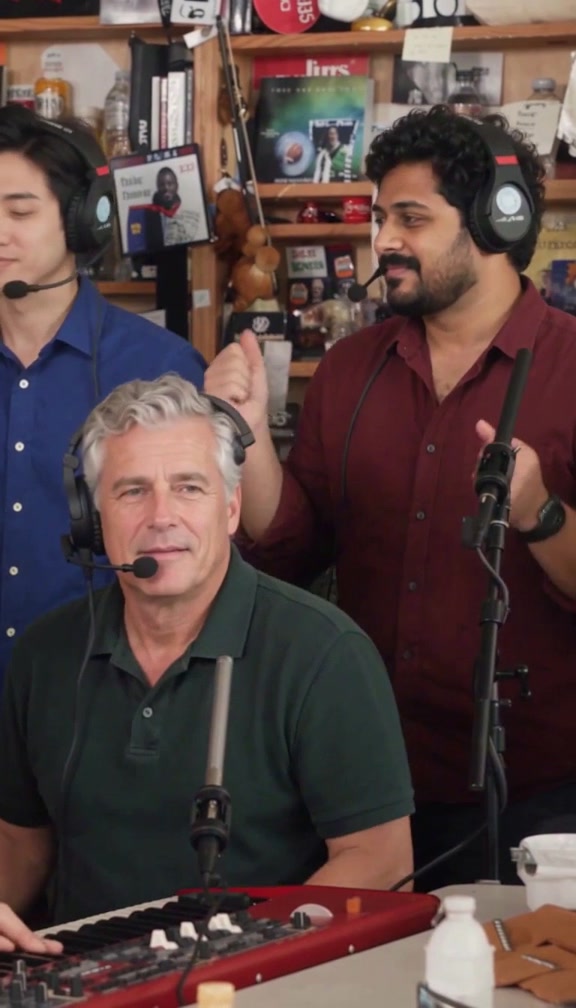
The five uploads are five different roles, not five views of the same person. Lead is required. The other four roles are optional, so you do not need to gather a complete band before creating a video.
| Seat | Where to look | Photo required? |
|---|---|---|
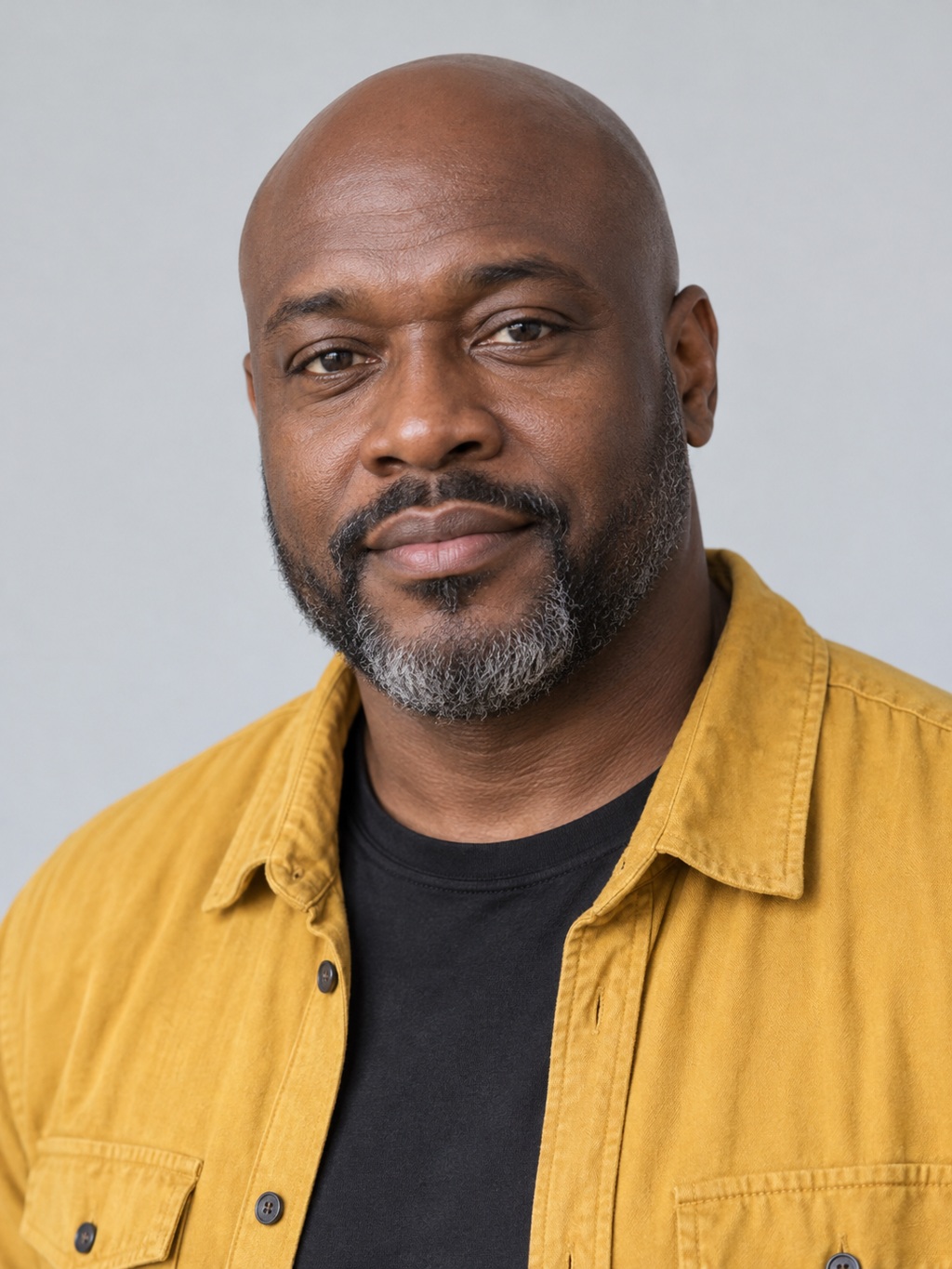
| Lead | Opening close-up at 0–1.38s; lead close-up at 6.71–13s | Yes |
| Left | Viewer’s left in the group shot at 1.38–6.71s | No |
| Keys | Seated keyboard player in the group shot and behind the lead | No |
| Right | Viewer’s right in the group shot at 1.38–6.71s | No |
| Sax | Saxophone solo at 13–15s | No |
The lead and the keyboard player are separate people. Use the role labels and the recorded example to decide where each friend belongs.
The same reference photo describes the face and clothes
For each selected seat, the workflow asks for the reference person’s face, hair and visible outfit together. You do not need a second clothing upload. Show the clothing in the person’s photo: a face-only crop gives little information about a shirt, jacket or dress.
A chest-up photo is useful for upper-body clothing. It does not establish trousers or shoes that are outside the frame. Fine logos, jewelry, fabric textures and small details may change in the result. There is no separate wardrobe prompt or clothing editor in this form.
 Lead
Lead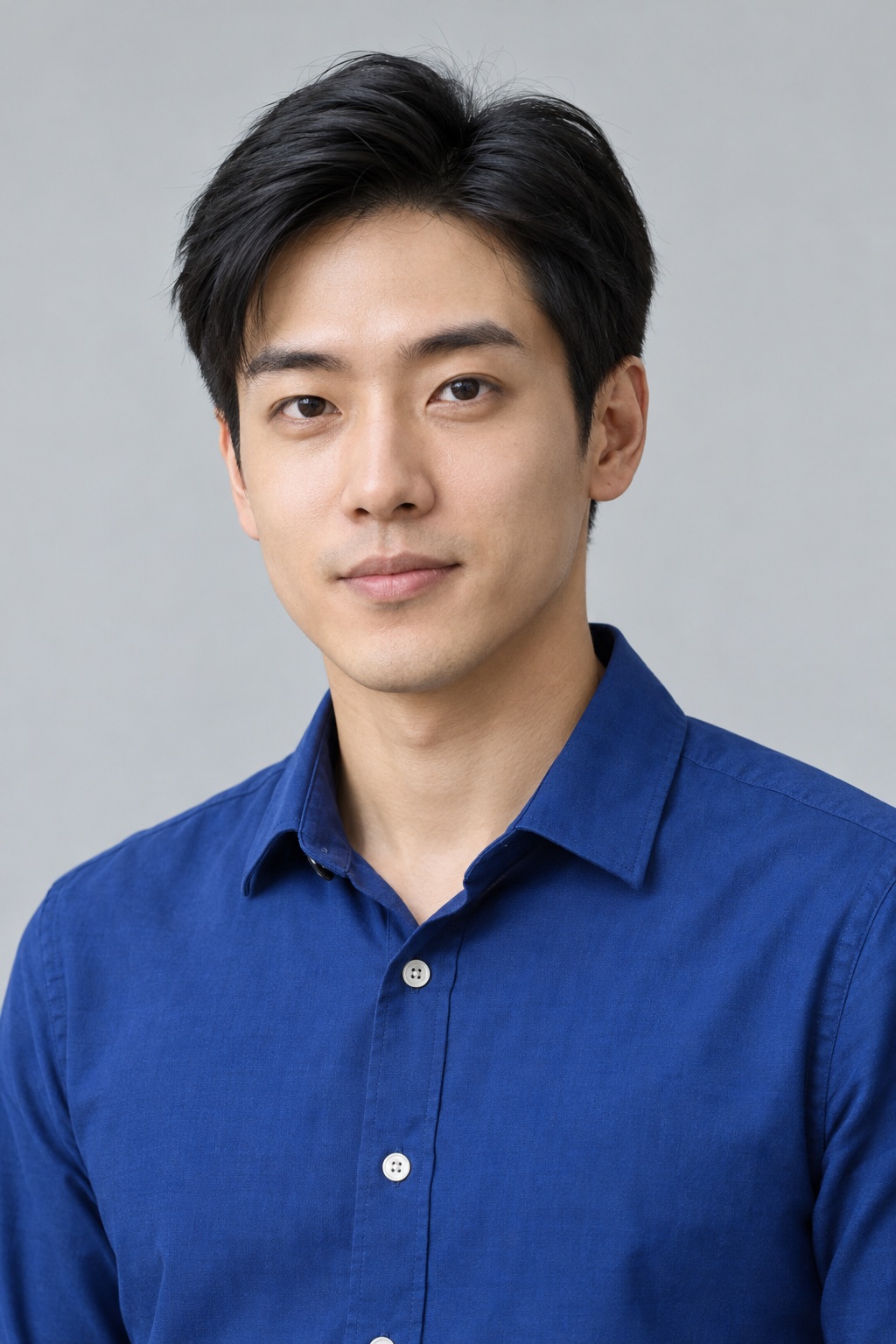 Left
Left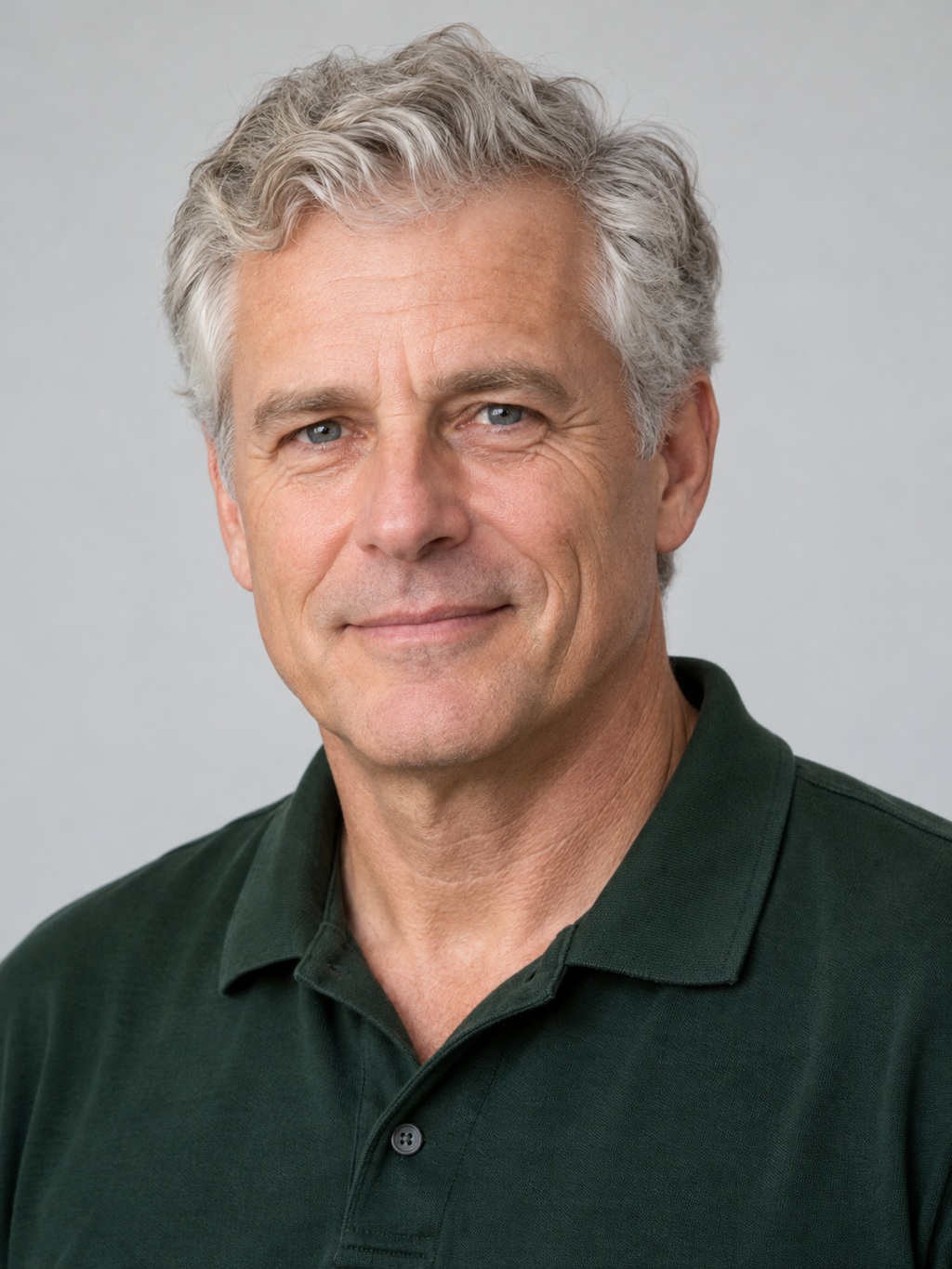 Keys
Keys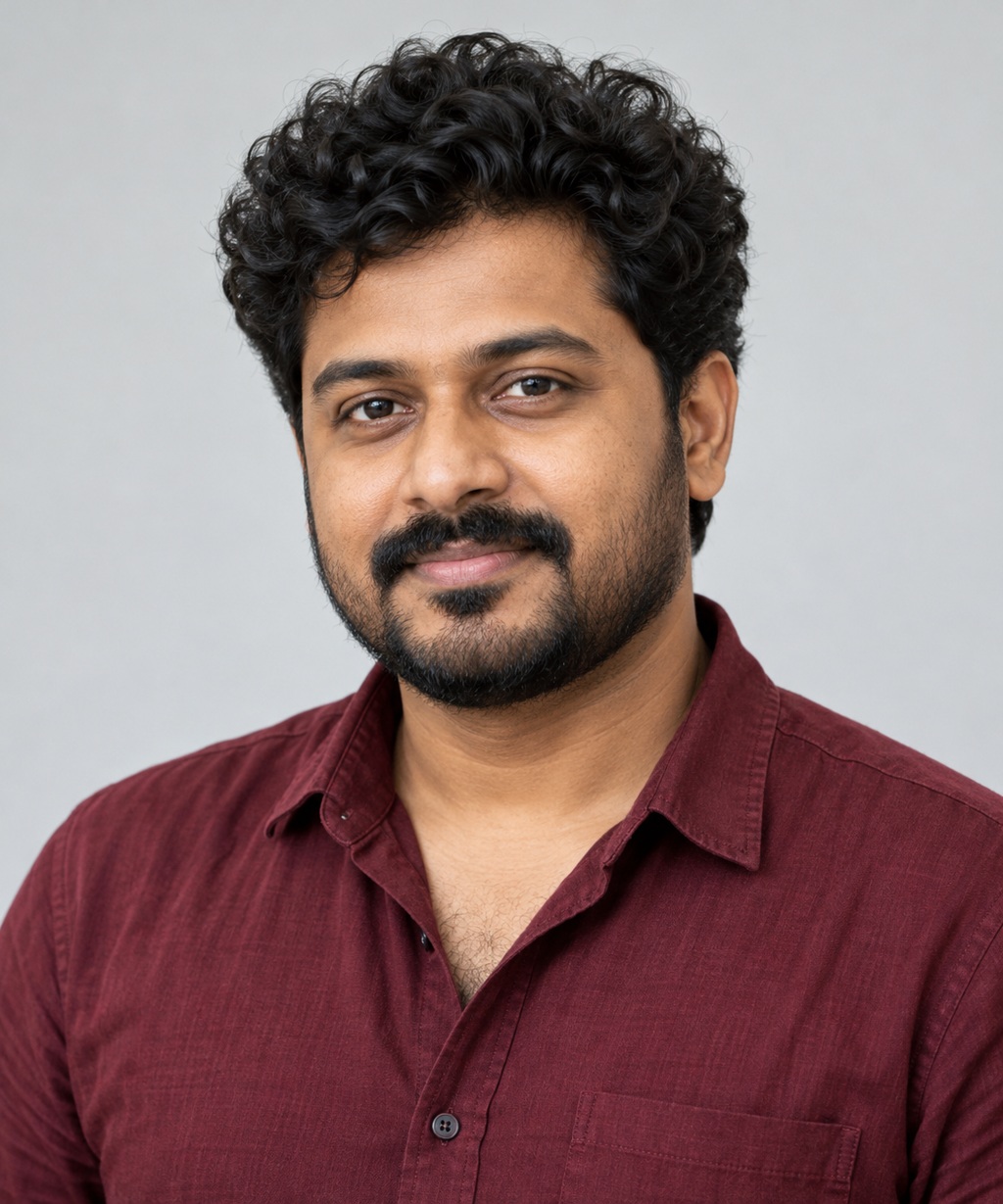 Right
Right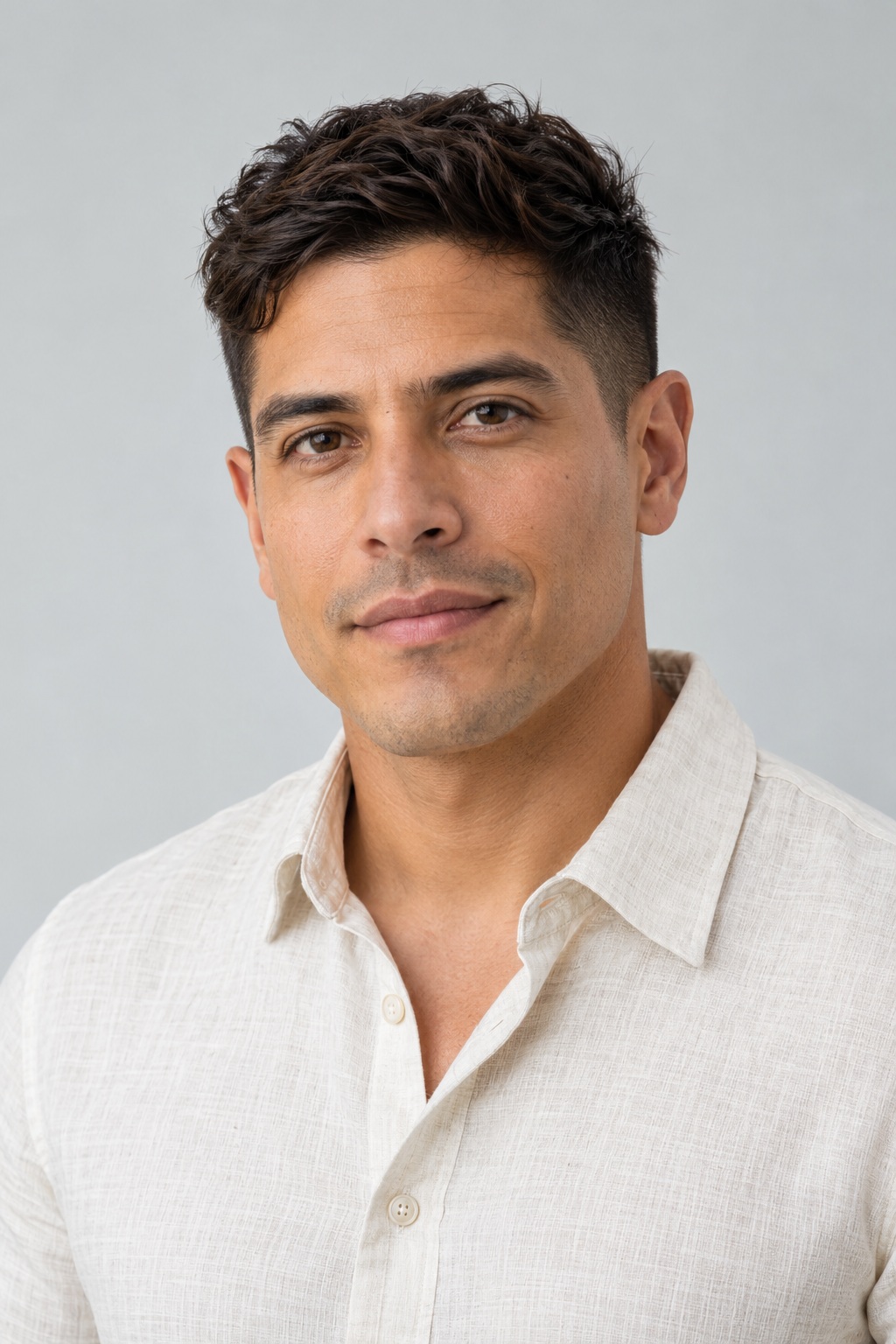 Sax
SaxIn the recorded example, the lead reference shows a mustard overshirt and the keyboard reference shows a dark green polo. Those visible clothes provide the intended appearance for their respective roles. This is a useful example to inspect, rather than a guarantee for every new photo.
For upload formats and image preparation, see the photo guide.
You can replace only selected people
For Lead and Sax only, add a photo to those two seats and leave Left, Keys and Right empty. The submitted selection contains those two roles. The model is asked to preserve the unselected people, including their clothes.
For all five people, fill every seat with a different adult’s photo. For Lead only, leave all four optional seats empty. Lead remains required, so the form does not support a sax-only order without a lead photo.
This is role-based selection. There is no brush, manual mask or frame-by-frame region editor. Preserving unselected subjects is a model instruction, and details can still drift. The price stays $9.90 for the complete video regardless of how many optional roles you select.
Watch the five-person example
Watch the whole clip: the wide shot is important for checking Left, Keys and Right, while the lead and sax have their own close-ups. This existing result uses all five displayed portraits. It is not generated from photos you just selected in the form.
The output keeps the original continuous 15 seconds, existing shot changes and music timing. The workflow does not add a new transition or remove a section in the middle. The output is a vertical MP4 at the 768P tier.
What can vary in a new result?
Faces, clothing boundaries, fingers, instruments and small background details can vary. A technically completed video is not proof that every person or garment is reproduced perfectly. Check all selected and unselected roles before sharing.
Use clear, evenly lit images; avoid group photos, covered faces and repeating one person in multiple seats. Upload only photos of adults who agreed to this use. A confirmed failed task restores the reserved credit; creative changes after a completed result require another credit.
Ready to try the workflow? Follow the step-by-step tutorial. To compare the fixed cuts, read Tiny Desk AI vs ReelMuse.